> For the complete documentation index, see [llms.txt](https://infinitybot.gitbook.io/infinitybot-docs/llms.txt). Markdown versions of documentation pages are available by appending `.md` to page URLs; this page is available as [Markdown](https://infinitybot.gitbook.io/infinitybot-docs/automatic-moderation/automod-dashboard-manager/member-profiles.md).
# Member Profiles
The member profiles rule will block users from sending messages in your server if they have a set keyword in their profile. You can learn how to enable it with the steps below.
{% stepper %}
{% step %}
### Decide What Rule You Want To Create
First of all, you will have to decide what rule you want to create. You can do so [here](/infinitybot-docs/automatic-moderation/automod-dashboard-manager.md#decide-what-rule-you-want-to-create).
{% endstep %}
{% step %}
### Enable the Rule
Then, you will need to enable the `Block Words in Member Profile Names` rule, you can do so by toggling the toggle switch of the correct rule.
{% endstep %}
{% step %}
### Configure Keywords
After enabling the rule, you will need to enter at least one keyword to it. You can do so by typing the keyword and pressing ENTER.
Additionally, you can also add allowed keywords in the "Allowed Phrases" field.
{% hint style="success" icon="lightbulb-on" %}
Don't know what keywords to add? You can use the 'Apply Default Words' button to apply some basic swear words!

{% endhint %}
{% hint style="success" icon="lightbulb-on" %}
You can use [advanced matching](/infinitybot-docs/automatic-moderation/automod-dashboard-manager/advanced-matching.md) and [regex patterns](/infinitybot-docs/automatic-moderation/automod-dashboard-manager/regex-patterns.md) here!
{% endhint %}
{% hint style="success" icon="lightbulb-on" %}
This rule supports mass-adding keywords, useful for long lists!
{% endhint %}
{% endstep %}
{% step %}
### Configure Actions
After that, you will be able to enable actions to take after a user broke the rule.
#### When rule is triggered
In this menu you can select what you want Discord to do when a user triggers this AutoMod rule. You can choose from:
* **Block User Interaction**, this will block all interactions from the user in your server. This works much like a timeout.
* **Send alert**, this will flag the message for review by one of your moderators.
{% hint style="info" %}
The interaction block (or 'timeout') will be automatically removed once the user removes the keyword from their profile.
{% endhint %}
#### Alert Channel
In this menu you can select the channel where you want AutoMod actions to be logged. Make sure this is a moderator-only channel!
{% endstep %}
{% step %}
### Configure Exemptions
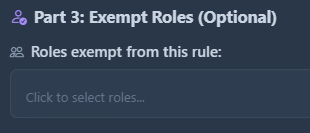
Now you can select roles that you want the AutoMod rule to ignore. Users with these roles can bypass this rule.
{% hint style="success" icon="lightbulb-on" %}
Both actions and exemptions can be configured as [default settings](/infinitybot-docs/automatic-moderation/automod-dashboard-manager/automod-settings.md#default-settings). This way, they will be the same for all AutoMod rules in your server.
{% endhint %}
{% endstep %}
{% endstepper %}
***
#### [Back to main AutoMod Dashboard page](/infinitybot-docs/automatic-moderation/automod-dashboard-manager.md)